
Invoices
The invoice is the tax invoice you give the customer. Posting it records the sale and the VAT, takes the goods out of stock, and either records the cash received or what the customer owes.
Open Sales›Invoices, click New Invoice on the dashboard, or use + in the top bar.
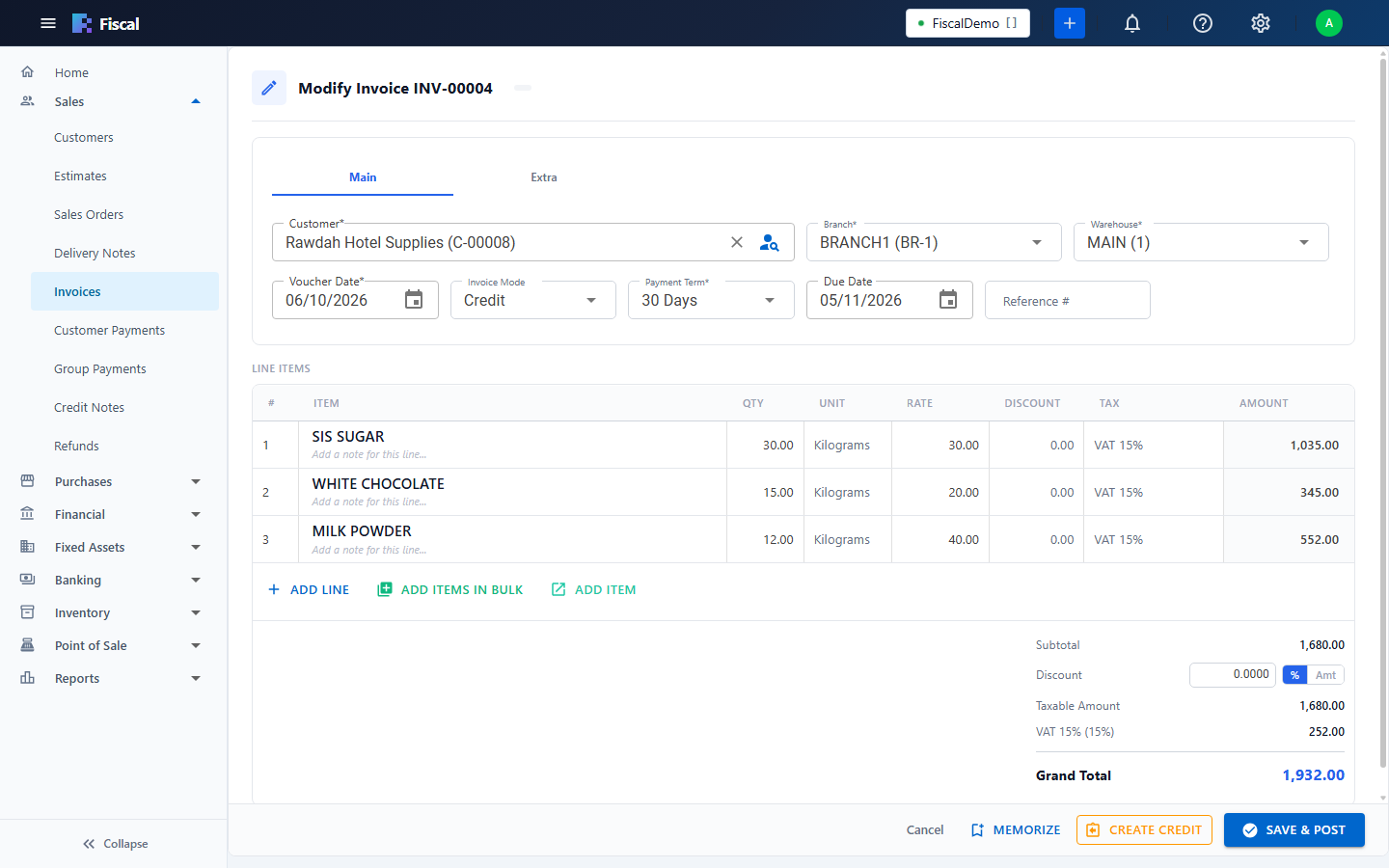
Create an invoice
- Click New, or convert an estimate, a sales order or a delivery note.
- Choose the customer. Their currency, payment mode, payment term and salesman are filled in from the customer.
- Check the branch, the warehouse and the Voucher Date.
- Choose the Invoice Mode (see below). Under ZATCA Phase 2, also check the E-Invoice Type: B2B or B2C, filled in from the customer.
- Add a Reference # (for example the customer's PO number), a Note and, if you use them, the Project and the custom fields.
- Add the lines (see Entering line items).
- Click Save & Post. Or Save as Draft, which posts nothing.
Cash or credit
| Invoice Mode | When | What Fiscal records |
|---|---|---|
| Cash | The customer pays now. Choose the payment mode. | The invoice is Paid. The money goes to Undeposited Funds until you record it going into the bank with a bank deposit. |
| Credit | The customer pays later. Choose the payment term. The Due Date is worked out from it. | The amount goes to Accounts Receivable. The invoice stays open until it is paid. |
A credit invoice that has received a payment can't be changed to cash.
In Saudi Arabia: ZATCA e-invoicing
With ZATCA set up (see E-invoicing (ZATCA)), each posted invoice carries its QR code, printed on the invoice and included in the emailed PDF.
- Under Phase 2, the invoice is sent to ZATCA when you post it, and its state shows on the line under the buttons in the center (Cleared by ZATCA, Reported to ZATCA, waiting, or not accepted with the reason and a Resend button).
- A B2B invoice needs the customer's valid VAT number and full national address. The form warns you before you post when something is missing. It can be printed or emailed only once ZATCA has cleared it.
- A B2C invoice prints straight away.
After posting
Select the invoice in the center. The buttons and tabs give you:
- Print and Send Email, with a choice of print templates. The preview shows CASH, PAID, PARTLY PAID or UNPAID in the top corner (not printed) (see Stamps on printed documents).
- Receive Payment for a credit invoice with a balance due (see Customer payments). The Payments tab shows the Total Paid and the Balance Due.
- Actions›Create Credit for returns and corrections (see Credit notes). The Credit Notes tab lists them.
- Post Delivery: when the goods are handed over after the invoice, possibly in parts, record each handover with New Post Delivery Note. It only records what was delivered: the stock already went out with the invoice.
- Transaction Journal, Attachments and Activity Log.
- Memorize on the form, for invoices you repeat regularly.
Edit an invoice
Click Edit, change it and post again. Fiscal replaces the invoice's stock and journal entries with the new ones. You can't edit an invoice dated in a closed period (see Closing the books), or, under ZATCA Phase 2, one that ZATCA has accepted or is still answering for. Issue a credit note instead (see Editing and cancelling).
Cancel an invoice
- Select the invoice and click Actions›Cancel Invoice.
- Choose the Reason: Customer request, Wrong customer, Wrong price or quantity, Duplicate invoice, Goods not delivered or Other (then type the reason).
- Confirm.
The invoice is kept, marked Cancelled with the reason, the date and the user who cancelled it. Its stock is returned, and its journal entry is reversed or deleted, depending on Preferences. If it is printed later, it is stamped CANCELLED with the reason.
An invoice can't be cancelled while it has payments, post-dated cheques or credit notes against it. Cancel those first. An invoice that was submitted to the e-invoicing gateway can't be cancelled: issue a credit note.