
Menu items, combos and screen menus
What the POS sells comes from three places: menu items (dishes and drinks with recipes), combos (meal deals), and screen menus (the buttons each terminal shows).
Menu items
Create them in Inventory›Items, type Menu Item (POS). A menu item has no stock of its own: selling it takes its recipe's ingredients out of stock.
- Enter the Category, Code and Name.
- On Portions & Recipes, add a portion for each size: Regular, or Small, Medium and Large. Give each its Price and barcode, and star the default portion.
- For each portion, enter the Recipe (per 1 portion): each ingredient (an inventory item), its unit and quantity, for example 18 g coffee beans, 220 ml milk, 1 cup. Fiscal shows the recipe cost and the food cost % of the price.
- Choose the Modifier groups offered with this portion, or the same groups for every portion (see Modifier groups).
- On General: the sales tax, the income account and the cost of sales account, where the ingredients' cost is posted when a portion is sold.
Batch ingredients are always taken earliest-expiry first, and a batch shortage stops the sale. Other recipe ingredients may go below zero, so a missing stock entry never stops service. Fix the stock afterwards.
Combos
Type Combo (POS): one price, and the customer picks from each group.
- Add Choice Groups, for example Main, Side and Drink, with a Min and Max (Min 0 = optional, Max 0 = no limit), and whether the same pick may be chosen twice.
- Add the Options in each group: inventory or assembly items (in a unit) or menu items (in a portion), with an extra charge if an option costs more, and a default.
The income and cost of all components post to the combo's accounts. Each choice prints on its own kitchen station.
Screen menus
A screen menu is the set of buttons a terminal shows, grouped in categories. Open Point of Sale›Screen Menus and click New menu.
- Enter the Menu name, for example Olaya Coffee Menu.
- Click Add category (for example Hot Drinks, Burgers), then search for items and add them to it.
- Select a button to change it: mark it as a Favourite (quick key), give it a picture (see below), and set its POS group and its button text in both languages. The POS group and button text are saved on the item, so every menu shows the same.
- Under Prices, set a menu price per portion or unit (empty = the base price), or hide a portion from this menu. Save the layout first if you added items.
Each terminal section (Quick Service, Table Service, Delivery) uses one screen menu, chosen on the terminal (see Terminals, staff and pairing). Different branches can have different menus and prices.
Pictures
Categories and buttons can each have a picture, which the POS screen shows on its cards.
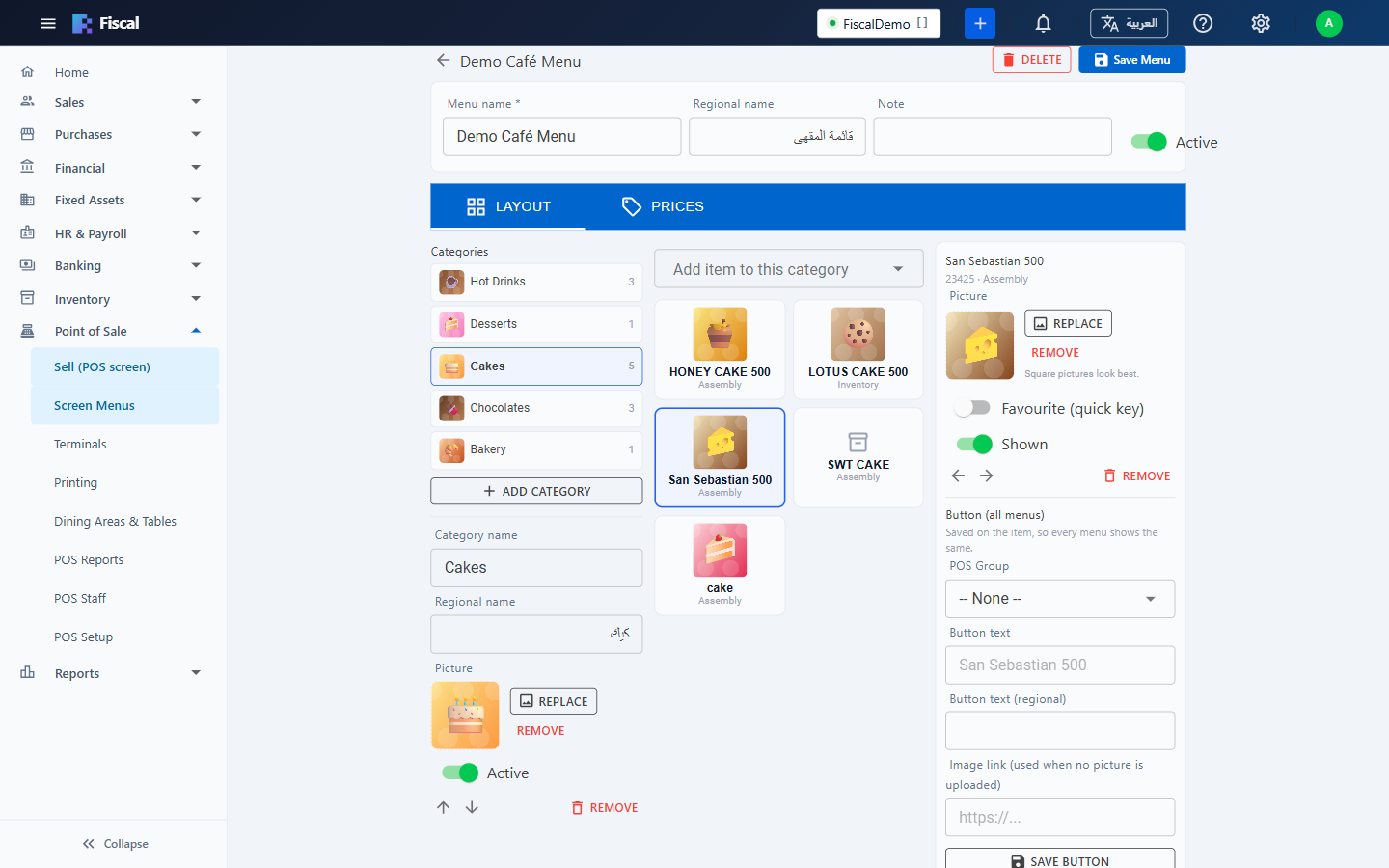
- Select a category, or a button, and click Upload picture. Choose a JPG, PNG or WebP file. Fiscal makes it smaller before uploading, so photos from a phone are fine. Square pictures look best.
- Replace puts a new picture in its place; Remove takes it off. Click Save menu to keep the change.
- A picture belongs to the button on this menu. When you add an item that already has a picture on another menu, that picture is used here too, and you can still replace it for this menu only.
- A button with no picture shows the item's Image link if it has one, or else a coloured tile with the item's initials.