
Attendance clocks
ZKTeco clocks with the Cloud Server (ADMS) menu send their punches straight to Fiscal over the internet. No software on a computer is needed.
Open HR & Payroll›Attendance Clocks. The list shows each clock with its serial number, branch, last contact, last punch and number of punches.
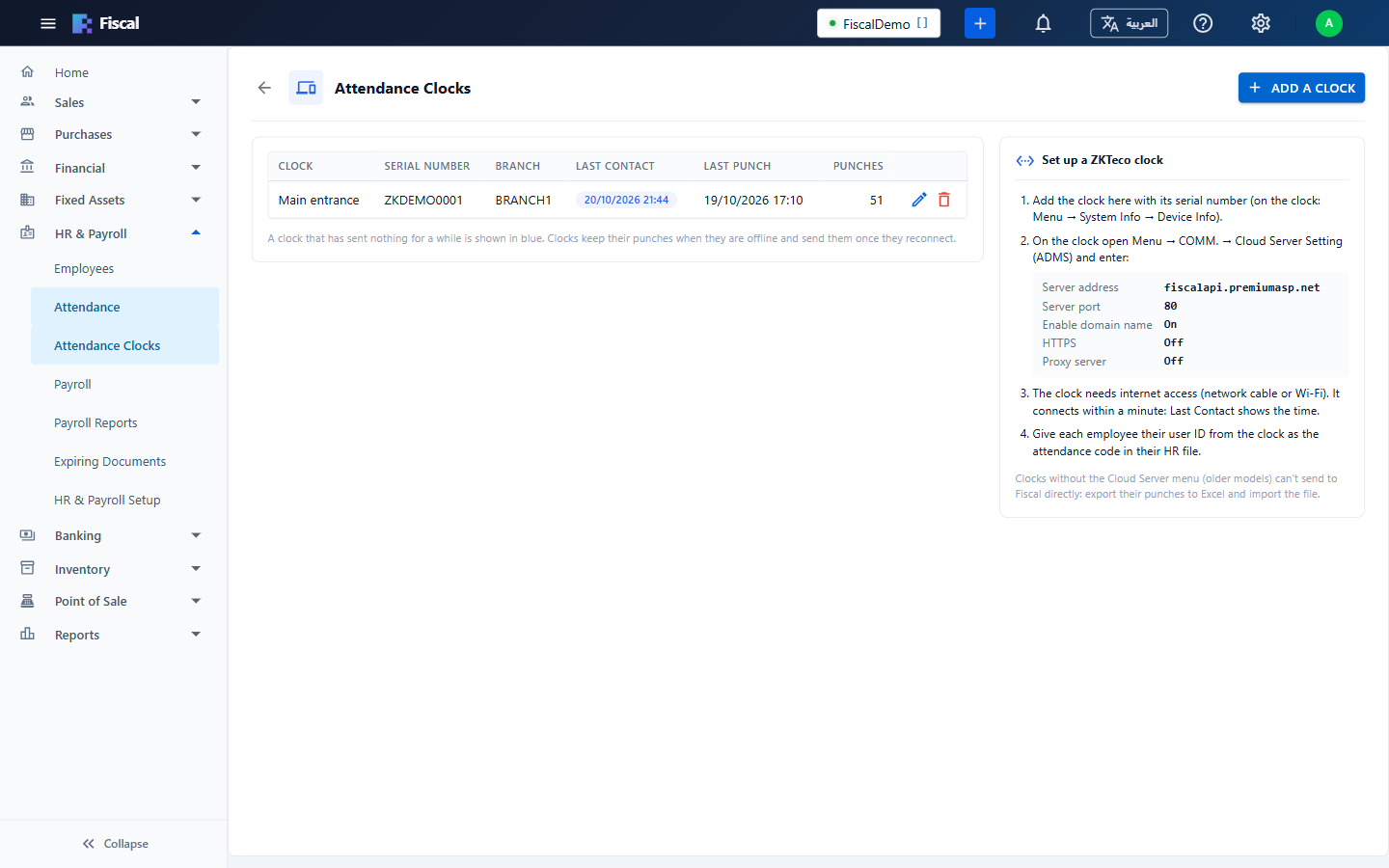
Connect a ZKTeco clock
- Click Add a Clock. Enter a name (for example Main entrance), the clock's Serial Number (on the clock: Menu › System Info › Device Info) and, if you like, its branch. Keep Accept punches from this clock on.
- On the clock, open Menu › COMM. › Cloud Server Setting (ADMS) and enter the server address and port shown on the page, with domain name on, HTTPS off and proxy off.
- Connect the clock to the internet (network cable or Wi-Fi). It connects within a minute, and Last Contact shows the time.
- In each employee's HR file, enter their user ID from the clock as the Attendance Code.
Clocks keep their punches while they are offline and send them when they reconnect. A clock that has sent nothing for a while is shown in blue. Removing a clock keeps its punches in Fiscal; the clock just can't send new ones.
Clocks without the Cloud Server menu (older models) can't send to Fiscal directly. Export their punches to Excel and import the file (see Importing from Excel).
Can't find what you need? Write to info@exlervision.com or chat with us on WhatsApp.