
Print templates
A print template decides how a document looks on paper and in the PDF that Fiscal emails. Each voucher type can have several templates, with one as the default.
Open Settings›Print Templates. A new company comes with a bilingual Tax Invoice template (English and Arabic, with the VAT details and the ZATCA QR code), and templates for customer payments and group receipts. Before you print or email credit notes and other documents, create a template for each of them; you can copy the tax invoice's HTML as a starting point.
Choose the template when printing
When you click Print on a document, Fiscal uses the voucher type's default template. If the voucher type has other templates, they are offered in the print menu, for example a simplified invoice and a full tax invoice.
Create or change a template
- Select a template, or click New.
- Choose the Voucher Type and enter a Template Name.
- Choose the Page Size (
A4,A5orLetter) and the Orientation (PortraitorLandscape). - Tick Default template for this voucher type if this one should be used unless the user picks another.
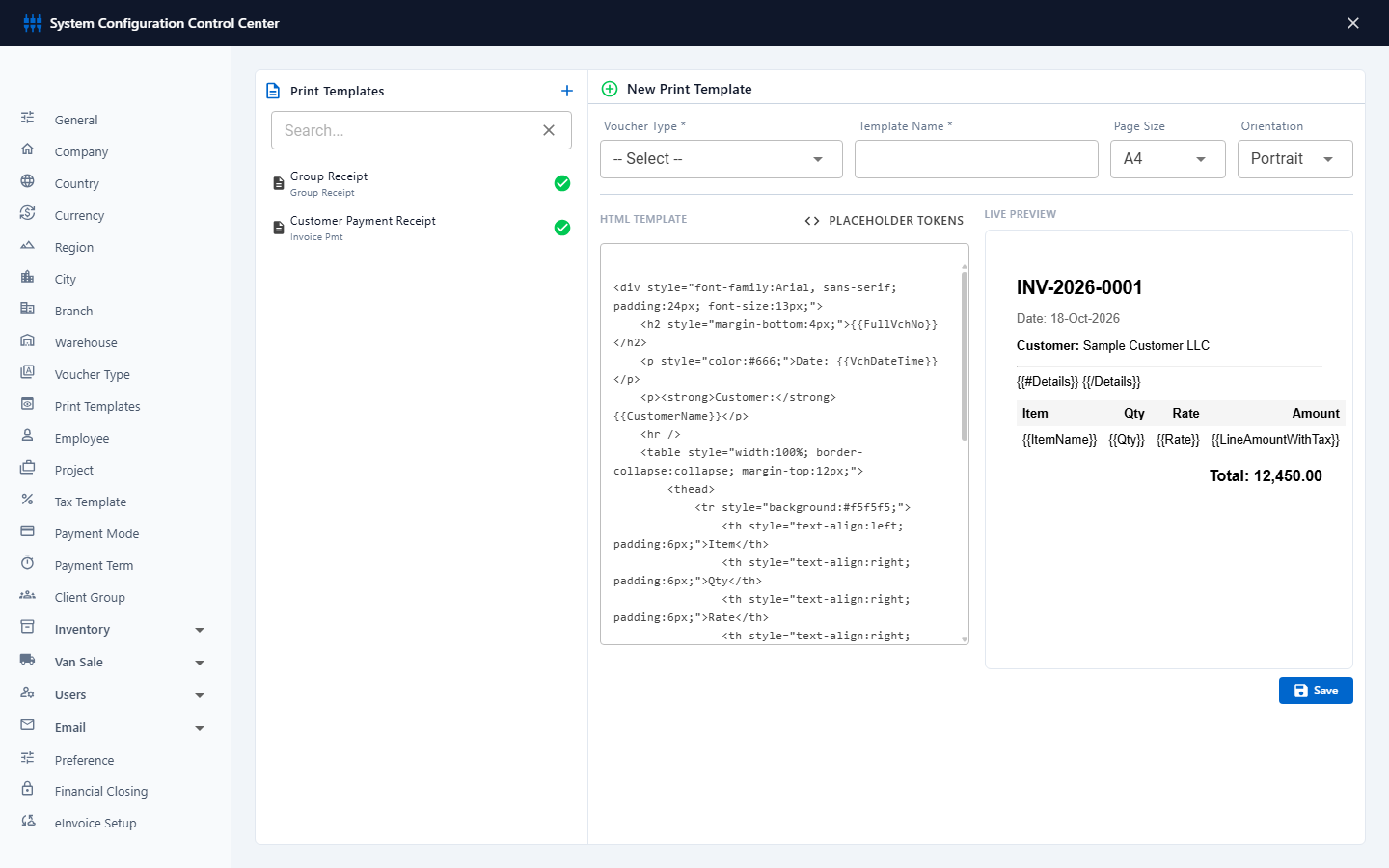
- Edit the HTML Template. The Live Preview on the right updates as you type.
- Click Save.
Before changing a template, copy its HTML into a text file. If the result isn't what you wanted, you can paste the original back.
Placeholders
A template is an HTML page with placeholders in double braces. Fiscal replaces them with the document's data. Click Placeholder Tokens above the editor to see the list.
| Placeholder | Prints |
|---|---|
{{FullVchNo}} | The document number |
{{VchDateTime}} | The document date |
{{CustomerName}} | The customer's name |
{{TotalAmountWithTax}} | The total including VAT |
{{#Details}} … {{/Details}} | Repeats what is between them for every line. Inside, use {{ItemName}}, {{Qty}}, {{Rate}} and the other line fields. |
{{AmountInWords}}, {{AmountInWordsAr}} | The document total in words, in English or Arabic. For another amount, add its name, for example {{AmountInWords:TotalTaxAmount}}. SAR, AED and USD are written in full, other currencies with their code. |
{{EInvoiceQrImageBase64}} | The ZATCA QR code of an invoice or credit note. Use it as <img src="data:image/png;base64,{{EInvoiceQrImageBase64}}" />. |
{{CompanyName}}, {{CompanyRegName}}, {{CompanyRegRegionalName}}, {{CompanyTaxNumber}}, {{CompanyRegNumber}}, {{CompanyAddress}} | Your company's details from the Company profile. |
{{CompanyLogoBase64}} | Your logo (see Company logo). Use it as <img src="data:image/png;base64,{{CompanyLogoBase64}}" />. It appears both in print and in the emailed PDF. |
For invoices in Saudi Arabia, keep the ZATCA QR code and the VAT details in the template. They are required on a tax invoice.
Stamps on printed documents
Fiscal adds these stamps by itself, on every template. You don't need placeholders for them. The corner stamps (DRAFT, CASH, PAID, PARTLY PAID, UNPAID) show only in the preview on screen, not on the printout or the emailed PDF. The others show everywhere.
| Stamp | On |
|---|---|
| DRAFT, in the top-left corner | Any document saved as a draft. |
| CASH, PAID, PARTLY PAID or UNPAID, in the top-left corner | Posted invoices and bills: CASH for a cash invoice, otherwise how much has been paid at the time of printing. Not on cancelled documents. |
| A red THIS DOCUMENT IS CANCELLED (or VOID) banner with the reason, and a large faint word across the page | Any document that has been cancelled or voided. |
| PREVIEW ONLY — NOT A VALID TAX INVOICE with NOT CLEARED across the page | The preview of a ZATCA Phase 2 B2B invoice or credit note that ZATCA hasn't cleared yet. It can't be printed until it is cleared (see Printing and the QR code). |