
Kitchen and production screens
Kitchen and production staff get their own simple, touch-friendly screens, so they can request stock, produce, pack and record waste without the full menus.
Who sees them
Set the user group's default landing page to /kitchen. Its users then start on the kitchen dashboard after signing in. Give the group the rights for the documents they use, and access to their warehouses (see Branch and warehouse access).
The kitchen dashboard
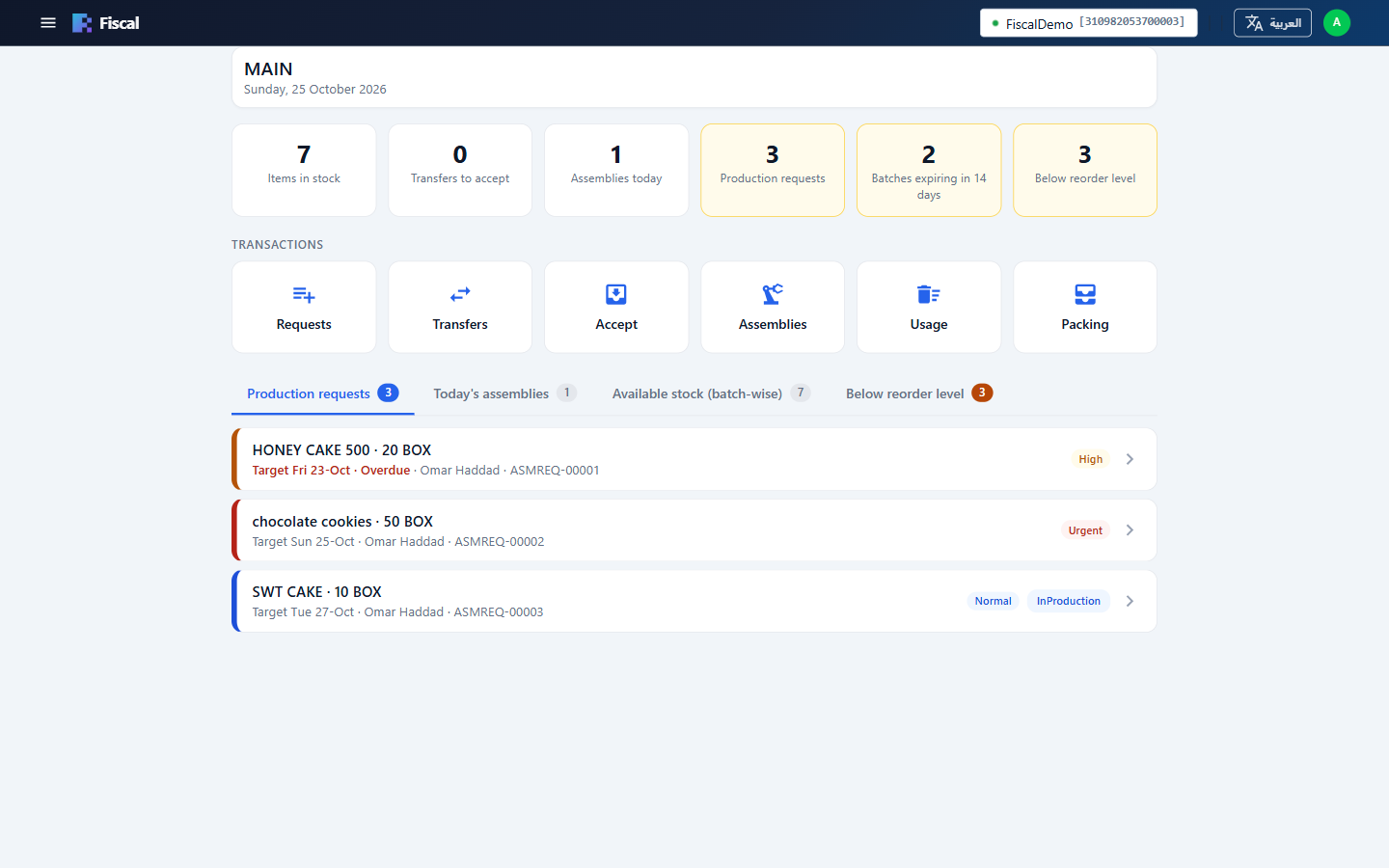
At the top: the number of items in stock, Transfers to accept, Assemblies today, Production requests, Batches expiring in 14 days and items Below reorder level. Below them are the transfers Waiting for you to accept, then these tabs:
- Production requests: what the office has asked this kitchen to produce, earliest target date first (see Assembly requests). This tab opens first when there are open requests.
- Today's assemblies.
- Available stock (batch-wise), searchable by item or batch, with the days left before each batch expires.
- Below reorder level.
The tiles
| Tile | What it is for |
|---|---|
| Requests | Ask the store for ingredients (see Inventory requests). |
| Transfers | Send stock to another warehouse (see Stock transfers). |
| Accept | Receive stock sent to your warehouse. |
| Assemblies | Record production (see Building assemblies and packing). |
| Usage | Record waste, spoilage or staff use (see Inventory usage). |
| Packing | Pack produced stock (see Packing). |
They create the same documents as the full screens, with larger buttons, so office staff can see and report on them as usual.