
Running the monthly payroll
Each branch has one payroll a month. Fiscal works it out as a draft, you check and adjust it, then approve it and post it to the accounts.
Open HR & Payroll›Payroll. The list shows the year's payrolls with their status (Draft, Approved, Posted, Cancelled), employees, earnings, deductions, net pay and amount paid.
Work out a payroll
- Click New Payroll. Choose the month, year and branch. The Posting Date is the last day of the month unless you change it.
- Click Work Out Payroll. Every employee of the branch who is paid through payroll is added and worked out.
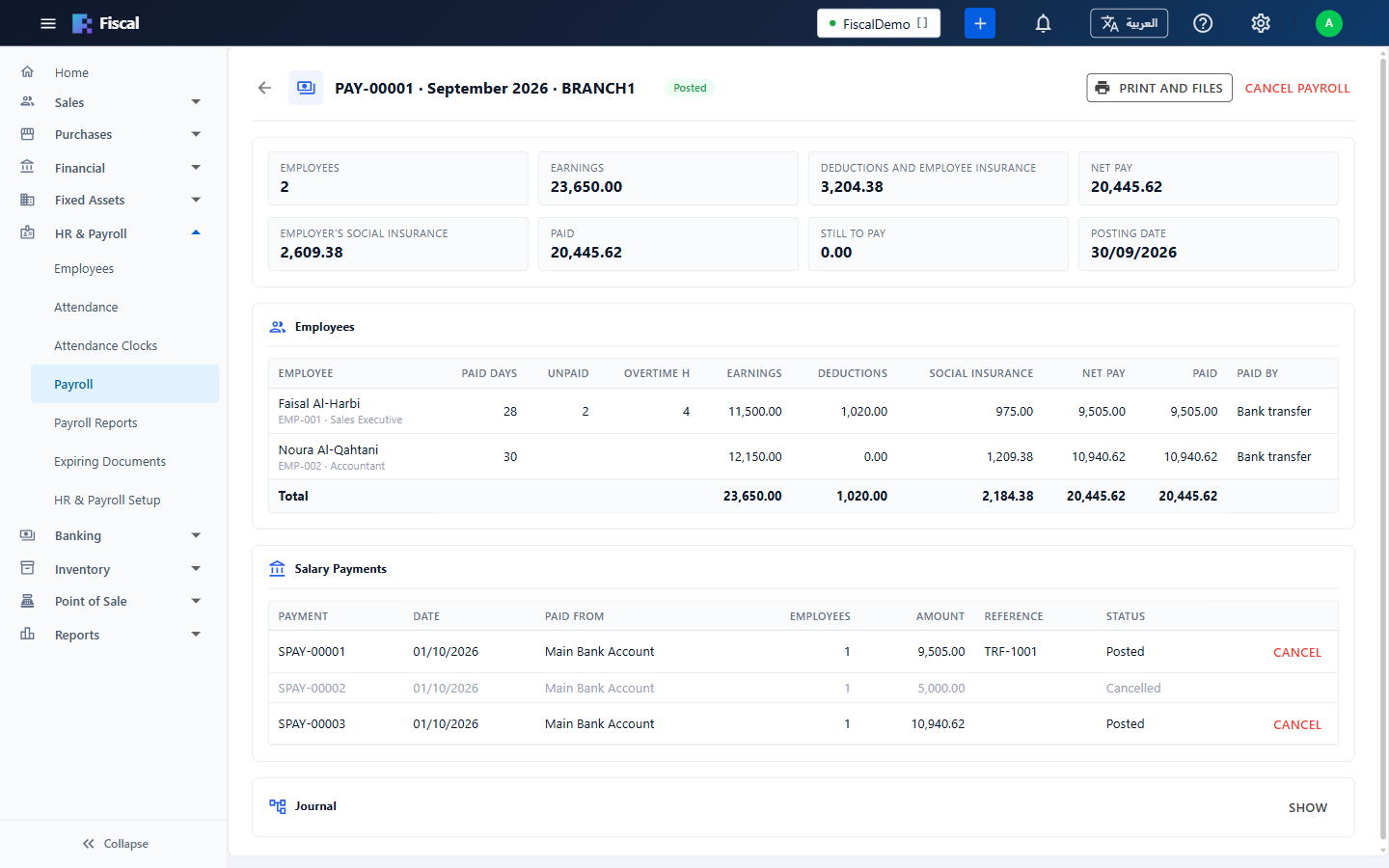
How each employee's month is worked out:
- The salary structure in force for the month. An employee who joins or leaves during the month gets the part of the components that are reduced for part months.
- Unpaid absent days are a separate Absence Deduction at the daily rate.
- Overtime hours are paid at the basic hourly rate times the overtime rate (or the rest-day rate).
- Social insurance is each part of the employee's scheme on the insurable wage, up to the wage cap. It is not reduced for absences. The employee's share is deducted; the employer's share is shown and posted, but not deducted.
Check and adjust the draft
Click an employee to open their month: every earning and deduction, the net pay, and the employer's social insurance.
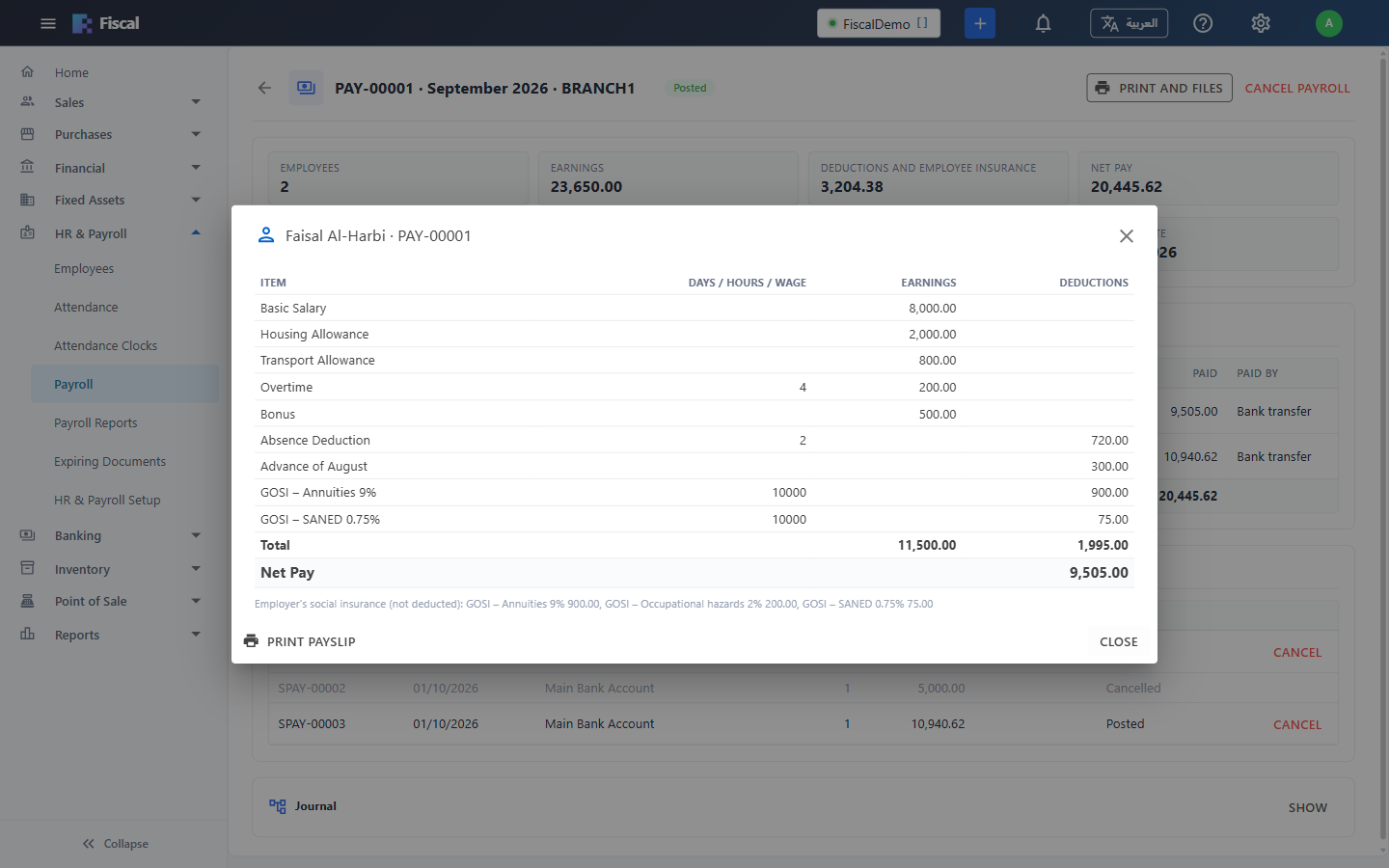
- Enter Unpaid Days, Overtime Hours and Rest-Day Overtime Hours. When the payroll settings take these from attendance and the employee has an attendance code, they come from the attendance sheet instead: correct the days there, then work the payroll out again.
- Under Amounts for this month, add a bonus, an advance recovery or a loan instalment (pay components entered in each payroll), with an optional description.
- Click Save and Work Out. Take Out of This Payroll leaves an employee out this month.
Work Out Again rebuilds the draft from the HR files, salary structures, rates and attendance, keeping what you entered for the month. Employees who now belong in the payroll are added, and those who no longer do are taken out.
Approve and post
- Click Approve. An approved payroll can't be changed; Back to Draft opens it again. The WPS file and bank salary sheet can be made from here on.
- Click Post to Accounts. Fiscal posts one journal entry: each earning to its expense account, each deduction to its account, the employees' and employer's social insurance to Social Insurance Payable (with the employer's share as Social Insurance Expense), and the net pay to Salaries Payable.
Fiscal won't approve a payroll with a negative net salary, or post one where a pay component has no account. Journal at the bottom shows the entry. A draft can be deleted; a posted payroll can be cancelled with a reason, which reverses its journal (or removes it, if the company's settings say so). Cancel its salary payments first.