
Selling at the POS
The POS screen is built for speed: tap items, tap Pay. Table service and delivery add tables, checks and a delivery board.
Sign in
On a paired device (see Pair a device), tap your name and enter your PIN. Tap Lock when you step away. A shift must be open to take payments (see POS shifts and cash).
Quick service
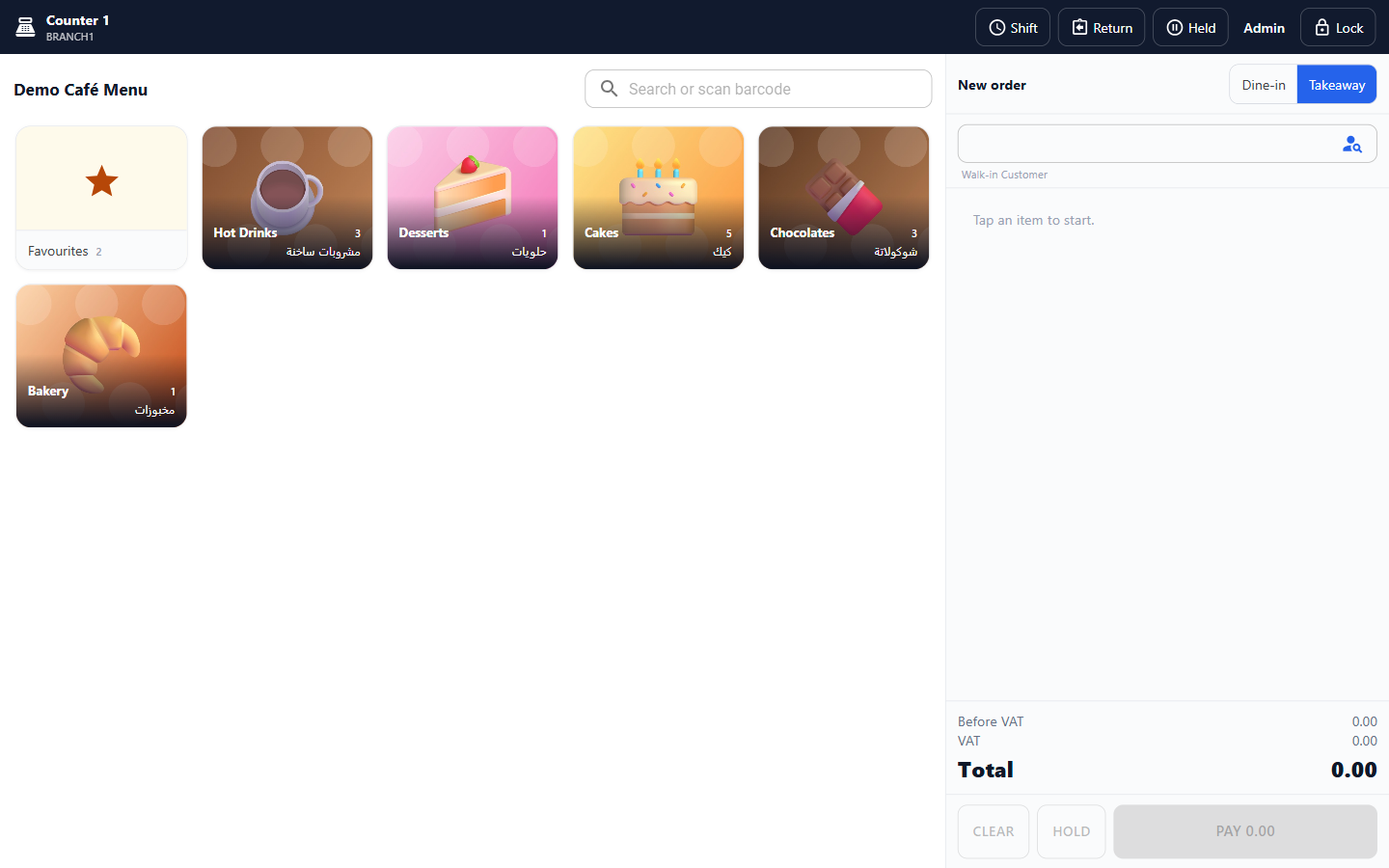
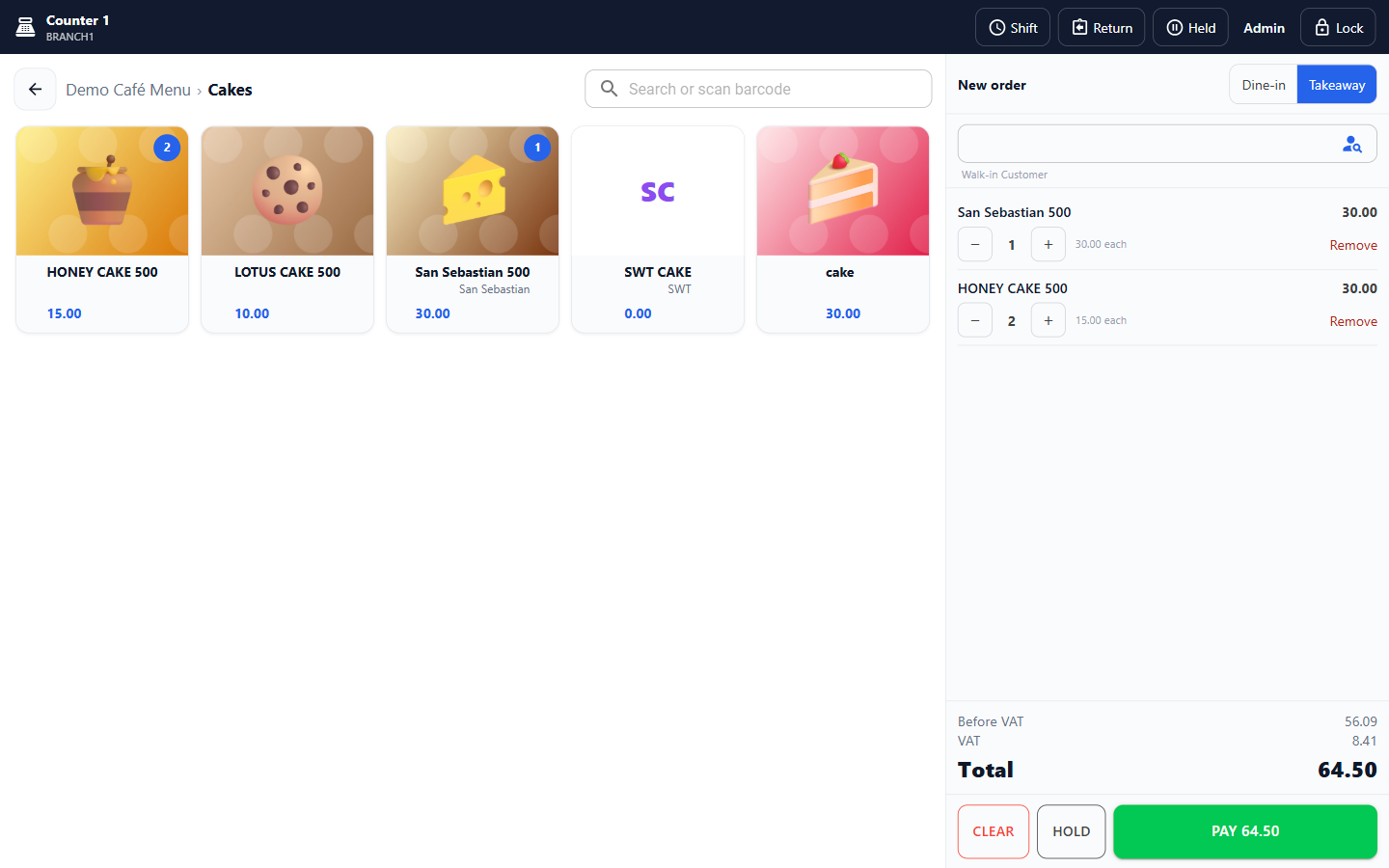
- The menu opens on its category cards. Tap a category to see its items, and the back arrow (or the menu name) to return to the categories. The Favourites card holds the quick keys. Search or scan barcode looks through the whole menu.
- Tap an item to add it. A badge on its card shows how many are already in the order.
- For items with sizes or modifiers, pick the portion and the options (for example oat milk, no sugar).
- Choose Dine-in or Takeaway.
- Apply a Discount if needed. Some need a manager to approve with their PIN.
- Tap Pay. Choose the payment type, enter the amount, the card's approval code or a reference, and a tip if your settings allow. Add more payment types to split the bill, or use Split equally. The screen shows what remains and the change.
- Tap Complete sale.
Completing the sale settles the order: the receipt shows on screen and prints (it is the simplified tax invoice, numbered in the terminal's own series), the kitchen tickets print, and the cash drawer opens for cash. Hold parks an order to finish later; the number of held orders shows on the button. Last receipt reprints the previous one.
Table service
- Open Tables and tap a table. Enter the number of guests.
- Add the items and tap Send: the kitchen tickets print, and the order stays open on the table. Each later Send is a new round.
- Print the Bill for the customer to check. It is marked as not a tax invoice; the tax invoice prints after payment.
- Tap Pay to settle. If the bill was split into checks, choose which check to pay.
Under More: Change table, Move items to another order, Merge two orders, Split bill into checks, and Close order. An order being edited on another terminal opens read-only, showing who has it.
Delivery
Open Delivery and tap New delivery. Choose the customer (delivery always needs a real customer) and check the delivery address, then add the items. The delivery board shows orders in columns by status. Tap an order to move it to the next status, and settle it when the driver brings the money.
Voids
To remove an item that was already sent to the kitchen, tap Void on the line. Choose the quantity, a reason and, if required, a manager's approval with their PIN. Voids are listed in the Voids and Wastage report. Lines not yet sent can simply be removed.
Returns
- Tap Return, enter the receipt number or scan its QR code, and tap Find.
- Choose the items and quantities coming back. The screen shows what was already returned and which items go back to stock.
- Choose the reason, the payment type to Pay back with, and a manager's approval if required.
- Tap Refund.
The refund is recorded as a credit note against the receipt's invoice.