
Customer payments
A customer payment records money you received and the invoices it pays. It moves the amount from Accounts Receivable to your bank or cash account.
Open Sales›Customer Payments, click Receive Payment on an invoice or a customer, or Receive Payment on the dashboard.
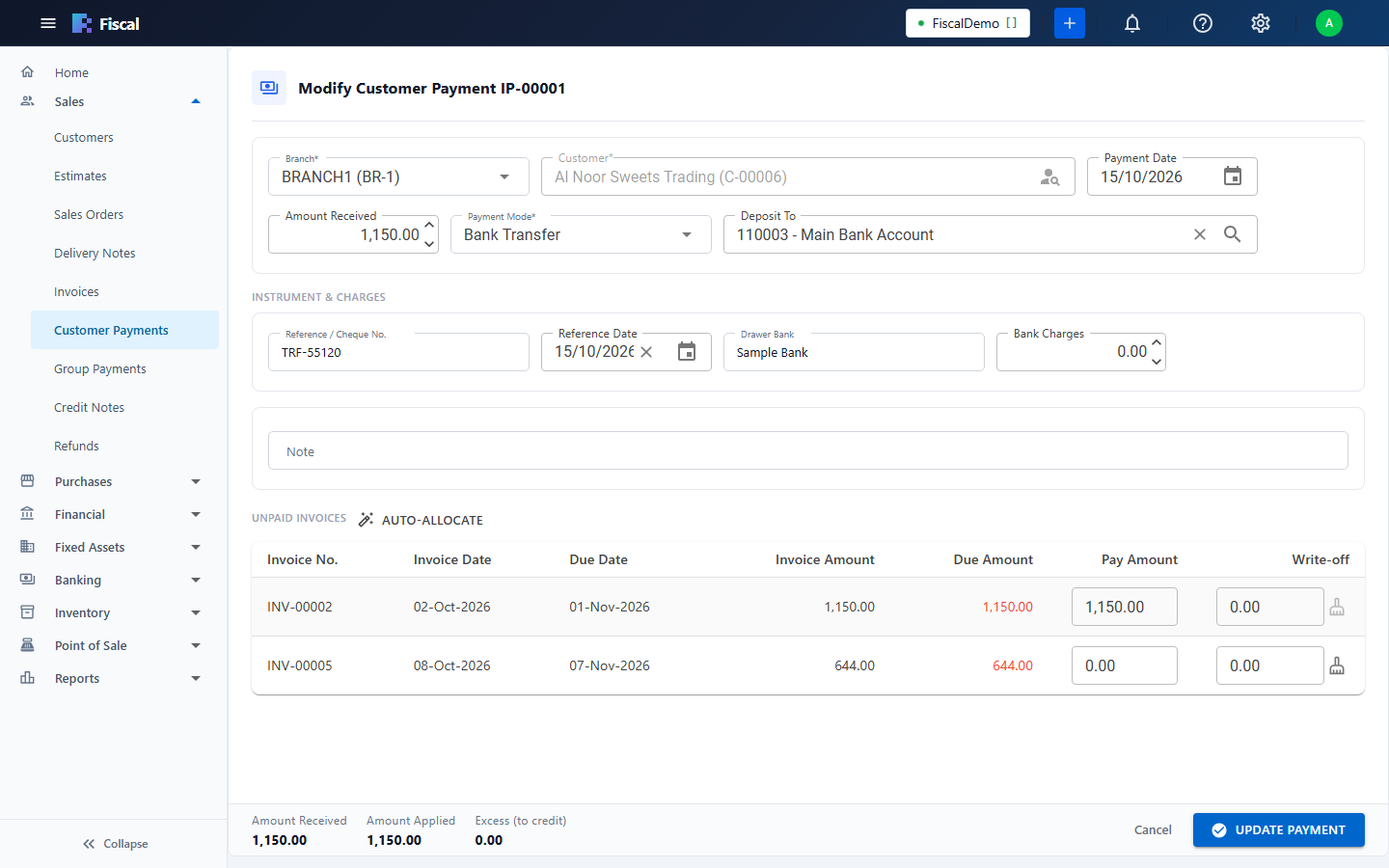
Receive a payment
- Click New and choose the customer. Their unpaid invoices, and their opening balance if any, are listed under Unpaid Invoices.
- Enter the Payment Date and the Amount Received.
- Choose the payment mode and the account the money went to in Deposit To.
- Under Instrument & Charges, enter the Reference / Cheque No., the Reference Date and the Drawer Bank if it was a cheque or a transfer. If the bank took a fee, enter the Bank Charges and the account to post them to.
- Check the Pay Amount on each invoice (see below), and save.
Allocating to invoices
With Auto Allocate Payments on in Preferences, Fiscal applies the amount to the oldest invoices first as you type it. You can type a different Pay Amount on any row. Click Auto-allocate to re-apply the amount oldest-first and replace what you typed.
The totals under the list show the Amount Applied. Invoices that are fully paid become Paid, others Partially Paid.
Using the customer's credit
If the customer has Available Credit, from credit notes or earlier overpayments, tick Apply Credit to use it on these invoices together with, or instead of, new money.
Small differences: write-off
If the customer paid slightly less and you accept it, tick Write off the remaining balance on that invoice, or enter an amount under Write-off. It is posted to the Write-off Account, or to Discount Allowed if you leave that empty.
Overpayments
When the amount received is more than the invoices you apply it to, the difference is shown as the excess:
- Excess (to credit): by default it stays as a credit for the customer, to use on their next invoices or to refund.
- Excess (to income): tick Record excess as income to post it to the Excess Payment Income account instead, for small amounts the customer won't claim.
Cancel a payment
Select the payment and click Cancel Payment, with a reason. The invoices it paid are open again. Payments that were part of a group payment are changed through the group payment.
For a cheque dated in the future, use a PDC receipt instead, so it isn't counted as money in the bank before its date.