
Signing in and out
You sign in to Fiscal with your email address and password at fiscal.exlerithub.com.
Sign in
- Open fiscal.exlerithub.com in your browser. Bookmark it so you can find it again.
- Enter your Email address and Password. Click the eye icon to check what you typed.
- Click Sign in. Fiscal opens the dashboard, or the page your user group starts on (see Default landing page).
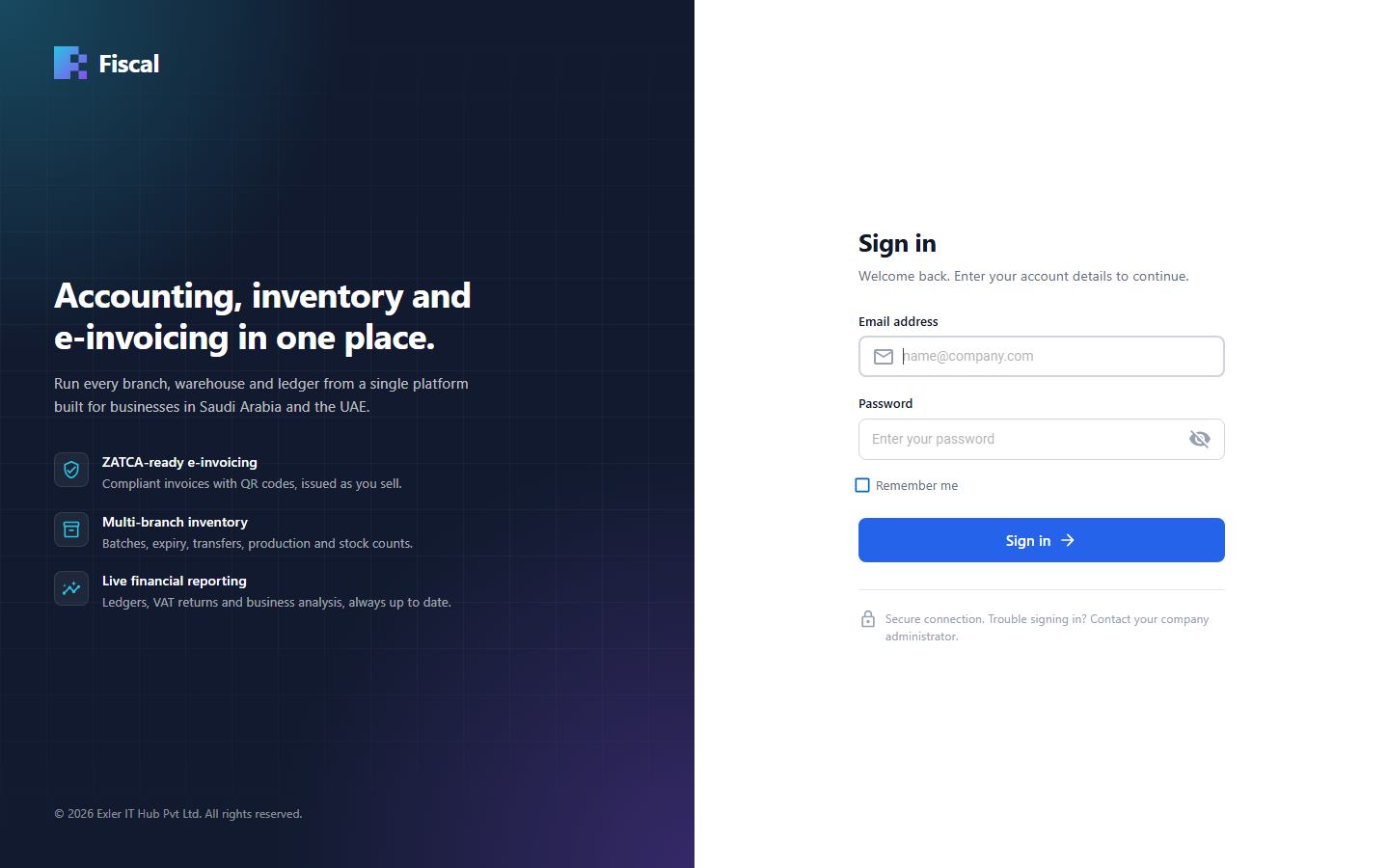
You don't need to choose your company: Fiscal finds it from your email address. The company name and VAT number appear at the top of every page once you are in.
If you can't sign in
| Message | What to do |
|---|---|
| Invalid email or password. | Check the email address and the password (passwords are case-sensitive). If you have forgotten your password, ask your company's Fiscal administrator to set a new one for you (see Change a user's password). |
| Access Denied: company is not active. | Your company's account has been paused. Contact Exler IT Hub support. |
| Access Denied: The subscription plan for company has expired. | The subscription needs to be renewed. Contact Exler IT Hub or your reseller. |
A user who was added in Fiscal must also be posted before they can sign in. If a new colleague's sign-in fails, see Let the user sign in.
Staying signed in
While you work, Fiscal keeps you signed in. If you leave it untouched for about 30 minutes, your session ends and Fiscal asks you to sign in again. Anything you had already saved is kept. A document you were still typing is not saved, so save your work before you leave your desk.
Change your password
- Click your initials in the top-right corner.
- Choose Change Password.
- Enter your Current Password, then the New Password (at least 8 characters) twice, and confirm.
Sign out
Click your initials in the top-right corner and choose Sign Out. Always sign out on a shared computer.
Your subscription
The coloured dot beside the company name at the top of the page shows the state of your subscription. Point at it to see the details.
- Green: the subscription is active.
- Yellow: 30 days or less are left. Plan the renewal.
- Red: 10 days or less are left, or there is no subscription information.
For the plan, its end date and the number of branches and users it allows, click your initials and choose About Fiscal.