
Bank reconciliation
Reconciling a bank account checks Fiscal against the bank statement: every deposit and withdrawal the bank shows is ticked off, until Fiscal's cleared balance equals the statement's ending balance.
Open Banking›Reconcile Accounts. Have the bank statement in front of you.
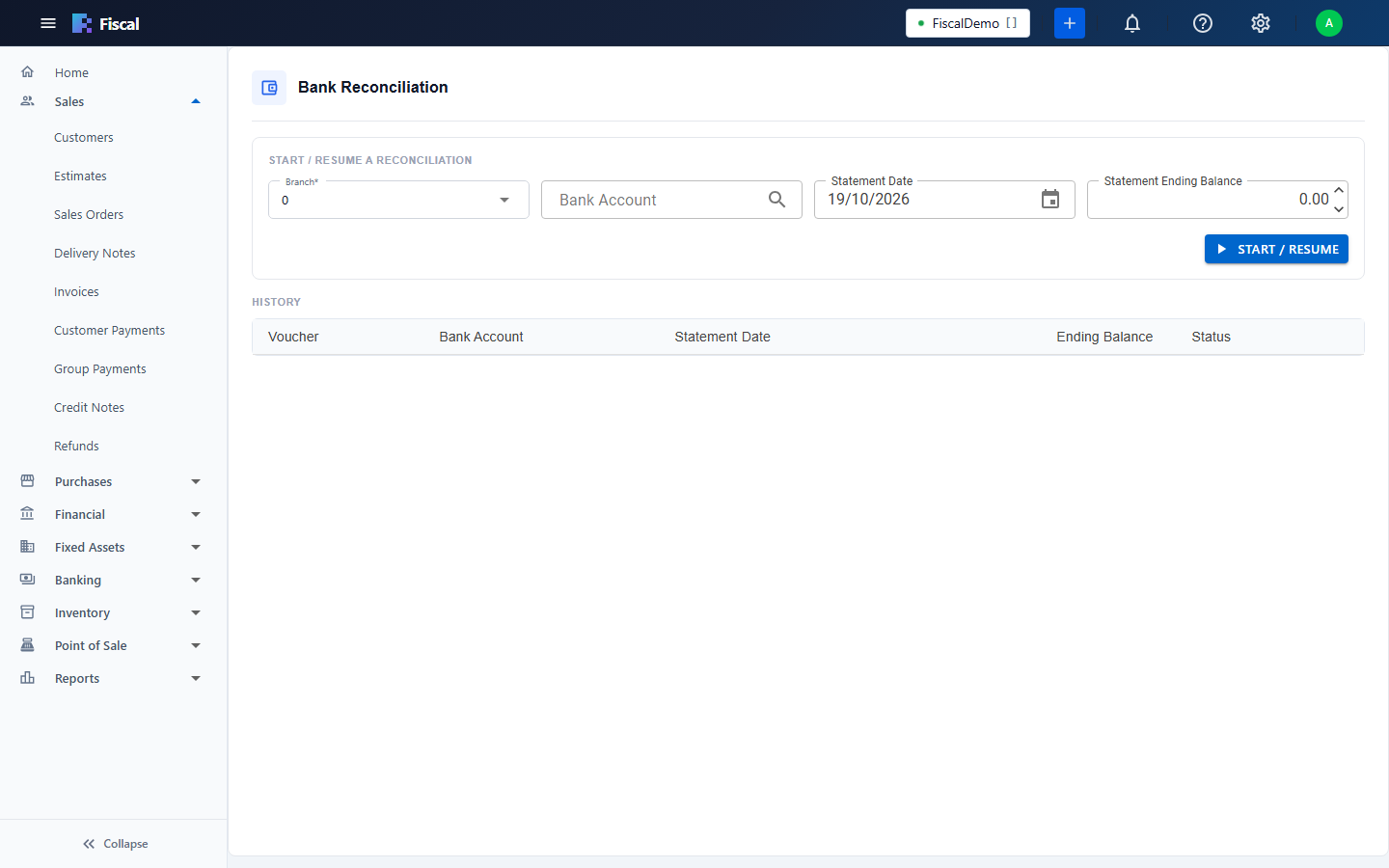
Start or resume
- Under Start / Resume a Reconciliation, choose the Branch and the Bank Account.
- Enter the Statement Date and the Statement Ending Balance from the statement.
- Click Start / Resume. If a reconciliation of this account is still in progress, it opens where you left it.
Tick the cleared items
- The Beginning Balance is the ending balance of the last completed reconciliation.
- Tick each line under Deposits (Dr) and Withdrawals (Cr) that appears on the statement.
- Watch the footer: the Cleared Balance, the Statement Ending and the Difference.
- Click Save Progress to continue later.
The difference isn't zero?
- Bank charges or interest on the statement but not in Fiscal: record them (an expense, or a journal entry), then tick them.
- A payment entered with the wrong amount: correct it, then tick it.
- Several payments in one bank line: those should be one bank deposit.
- Wrong ending balance typed: change it at the top and click Update.
Complete
When the Difference is zero, click Complete Reconciliation. It can only be completed when it balances. It then appears in the History with its ending balance.
Documents whose journal lines are in a completed reconciliation can no longer be edited, so the reconciled balance can't change by accident.
Can't find what you need? Write to info@exlervision.com or chat with us on WhatsApp.